
A Fresher, Faster Bird Journal
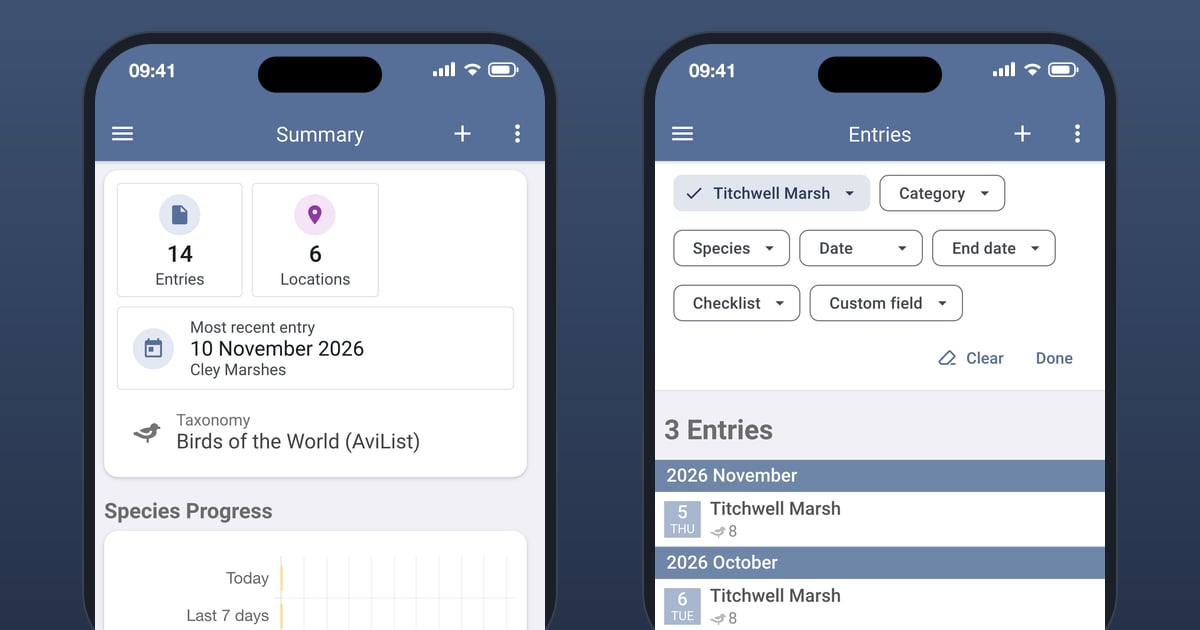
Some of Bird Journal’s screens had been with us a long time, and it showed. They worked, but each had grown its own way of doing things, and some were slower than they should have been.
Over the autumn we’ve been rebuilding them in a fresh, modern design, one screen at a time, on phone and desktop alike. Each does what it did before, more clearly and in the same way as the others. And because they’re rebuilt from the ground up, they’re quicker too. Here’s what you’ll notice.
A new Summary
The Summary now opens on tiles: your entries and your locations, then one for each kind of media you keep, such as your photos and sounds. Each tile is a way in: Entries opens your entries, Locations your locations, and a media tile opens the Gallery.
Below them, your most recent entry sits in a card of its own, one tap from opening it, and the Species Progress chart follows. Tap one of its bars, such as this year or life, and it opens your species list for that period.
There’s a simple rule behind the look: anything you can tap sits in a tile or card, and anything that’s only there to inform is plain text. So you can tell at a glance what goes somewhere.
Filters you can read at a glance
The filters on Entries, Species, Locations, the graphs, the maps, the Gallery and the reports are now chips. A chip you haven’t set shows just its name, like Location or Species. Once you set it, it fills in with a tick and the value you chose, so you can see what’s narrowing your list without opening anything.
Tap a chip and it opens a list ready to type into: Location opens with Search locations and the keyboard already up, and Species and Checklist have a search of their own. The first row of each list, such as Any location, clears that one filter, and Clear clears them all.
On a phone, the filters fold into one line that says what’s set, or Tap to customise when nothing is. Tap it and the chips open. Choosing in a list then happens just above your results: the list rises from the bottom of the screen and stops short of the filters, so you can watch the top of your results change as you choose. Location and Species, which need the whole screen to search, open as a page of their own.
Rebuilt, and quicker for it
The rebuilt screens open and respond faster than the ones they replace. And they’re only part of the speed work this autumn.
On iPhone and iPad, since September, Bird Journal is noticeably quicker on every screen, species search especially.
On Android, since October, Bird Journal is quicker too, most of all with a large journal, which now opens after an update in well under half the time it took before.
Saving and syncing keep up with a large journal on every platform. Each change writes far less than it did, so a save stays quick even in a large journal and a sync sends less over the network. If a sync doesn’t get through on a poor connection, your next saves stay quick and later changes still sync. And if a save ever fails, your change is kept: the recording screen keeps your entry and says you can try again, and on Mac, Windows and the web the dialog stays open, so pressing Save tries again.
Smoother as you go
This month brought a handful of smaller changes you’ll feel every day:
- Bird Journal opens sooner. It starts opening your journal while the rest of the app is still loading, so the Summary is ready earlier.
- Stepping between entries, species and locations is steadier on a phone. Only the page slides, while the bar with the back arrow and the count stays still; the swipe follows your finger evenly; the next page’s photos are already in place as it slides in; and Back returns to the list, however far you’ve stepped.
- Photos open over the entry they belong to, growing out of the picture you tapped, so you can look through that entry’s own photos and sounds. ← Entry takes you back to where you were, and Show in Gallery opens the full Gallery. The photos on a species or a location open the same way.
- A new entry’s country is searchable on the recording screen. Type the start of any word in its name, with or without accents, and it’s found.
Rebuilt throughout
The new design reaches well beyond the Summary. The screens you’ll meet most:
- The Library has four tabs, Library, Installed, Updates and Custom, with a search and a Type chip to narrow what you browse. Retired items say what replaces them.
- Settings gathers everything into General and Custom Fields, and nothing changes until you press Save.
- Import shows what it found in the file, groups any problems with the file by kind, and now spots your holiday sites. When a file doesn’t say which country each row is in, the import checks the species recorded at each site against that country’s checklists from the Library, and gathers the ones that don’t belong under May be abroad, ready to Move to… the right country. (It needs that country’s checklists, checklist packs or taxonomy installed.)
- Export picks All entries or Since last export, narrows them with the same filter chips, and lists every entry with a tick box.
Edit Locations, Swap, Taxonomic Updates, most of the menus, and the checklist and synonym pack editors have been rebuilt the same way. Swap also has something new, a Taxonomies tab, which has a post of its own.
Getting it
All of this is live now, on iPhone, iPad, Android, Mac, Windows and the web. If you haven’t updated for a while, update your app and have a look round.
If a screen doesn’t work the way you expect, or something still feels slow, we’d like to hear about it. There are feedback options built into the app under the Help menu, and the support site is always open.