
Swap Taxonomies
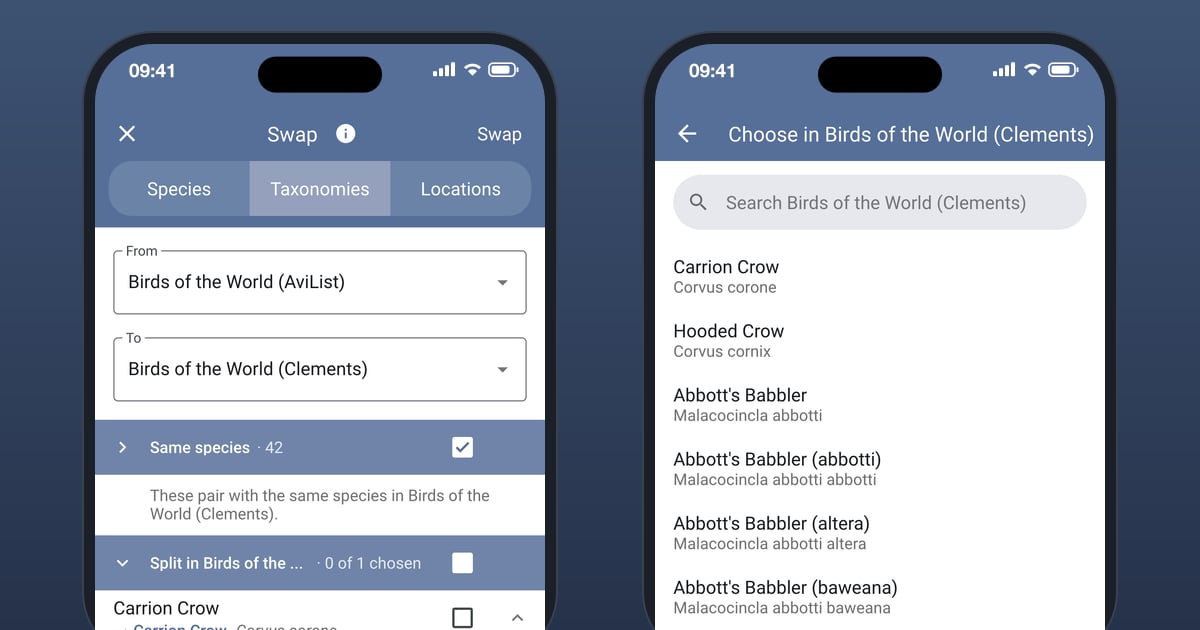
Every observation in Bird Journal belongs to a species in a taxonomy: a list such as Birds of the World (AviList) or Birds of the World (Clements). Most of the time you never think about it. But sometimes you want to move: to a different world list, to a newer one that replaces the list you’ve been using, or from a list you built yourself to one from the Library.
Until now, the only way to do that was one species at a time. Swap’s Species tab moves the records of one species to another, which is fine for a single change and hopeless for a whole journal.
So Swap now has a Taxonomies tab. It moves your records from one taxonomy to another in one go, with each species paired with its match.
Choose where from, and where to
Open Swap… from the Tools menu (on a phone, it’s under More › Tools) and choose Taxonomies.
From offers only the taxonomies something of yours actually uses. To offers every other taxonomy you have installed. If there isn’t one, Swap tells you to install one from the Library first.
Nothing changes until you swap. Until then, you’re just looking.
Check the pairs
Swap pairs each of your species with its match in the taxonomy you’re moving to, and groups them by how sure it is:
- Same species: the same species in both lists. There’s nothing to check here, so the group starts folded away.
- Same scientific name: matched on the name alone.
- Then the ones that need a word from you, each group saying why: Split in …, Lumped in …, Parent species in …, more than one species of that name, or none at all.
Each row shows your species and, where the name changes, what it pairs with. Open a row to see what moves with it: how many of your entries use it and when, and any of your own checklists and synonym packs that include it.
Choose any it couldn’t match
Pairs with a clear match start ticked. The rest wait for you. Open a row and choose in its To field, or tap the empty box of a row Swap couldn’t match, and it opens a search of the taxonomy you’re moving to, so you can choose the species yourself.
It helps where it can. For a split, the species it was split into come first. For a lump or a parent species, Swap shows its suggestion, but it never ticks that for you, because only you know what you saw. And if you disagree with a match it found, you can choose a different species for that row, and Reset puts its own choice back.
You don’t have to settle everything at once. A species you leave unticked simply stays where it is, and Swap says how many will stay until you choose for them.
Then swap
Beside the list on a desktop, or in a bar along the bottom on a phone, Swap keeps a running total of what you’ve ticked: how many species, entries, checklists and synonym packs will move. When you’re happy, press the Swap button, and it asks you to confirm before it moves anything.
When it does, every observation of each ticked species moves to its partner, along with your own checklists and synonym packs. Lists from the Library aren’t touched. Each swap is recorded in Taxonomic Updates, on its Change Details tab, so you can look back at what your recent swaps moved.
There’s no undo, which is why Swap shows you every pair before you start.
If the taxonomy you moved from was one you made yourself, and nothing uses it any more, Swap offers to turn it into a checklist on the new taxonomy, so the species you’d gathered stay a list you can record from. Or you can keep it as it is.
From a retired taxonomy
When a taxonomy in the Library is replaced by a newer one, the old one is marked retired, and gets no further updates. Your records stay on it until you move them, and now that’s straightforward. Install the taxonomy that replaces it, then open the retired one under the Library’s Installed tab: its Migrate… button opens Swap with both taxonomies already filled in. Taxonomic Updates offers the same.
When you move from a retired taxonomy, its replacement also takes its place in your list of taxonomies, and becomes your primary taxonomy if the retired one was. Swap tells you which before you confirm.
Getting it
The Taxonomies tab is live now, on iPhone, iPad, Android, Mac, Windows and the web. If you don’t see it, update your app.
Moving a whole journal is a big step, so if anything about a swap isn’t clear, ask us first. There are feedback options built into the app under the Help menu, and the support site is always open.