
Sounds and Documents
For as long as Bird Journal has kept photos, people have asked for it to keep their recordings too. On the ideas board, Allow easier linking of video and audio files as is the case with photos has 40 votes, Allow the import of song recordings, not just photos has 12, and Upload PDF has 13. Read the comments and it’s clear what you’d keep: the song you caught from the hawthorn, an MP3 from your own recorder, a nocturnal migration clip, a ringing form, a submission to the county recorder, an expedition’s report.
As of today you can. Sounds and PDF documents now sit with your entries and observations, just as photos do, on every platform.
Record it while it’s singing
When a bird is singing, there’s no time to go looking for a recorder, so recording is one tap from the observation.
On iPhone, iPad and Android, the Photos row in the observation editor is now Media, and it has a microphone beside the camera. Tap the microphone and recording starts straight away. The first time, your phone will ask for permission to use the microphone.
While it records, the sheet shows how long you’ve been going and how loud it is. You can pause and carry on, so a song that comes and goes doesn’t have to be one long recording full of silence. A recording can be up to 10 minutes long, and the sheet tells you when you’re getting close.
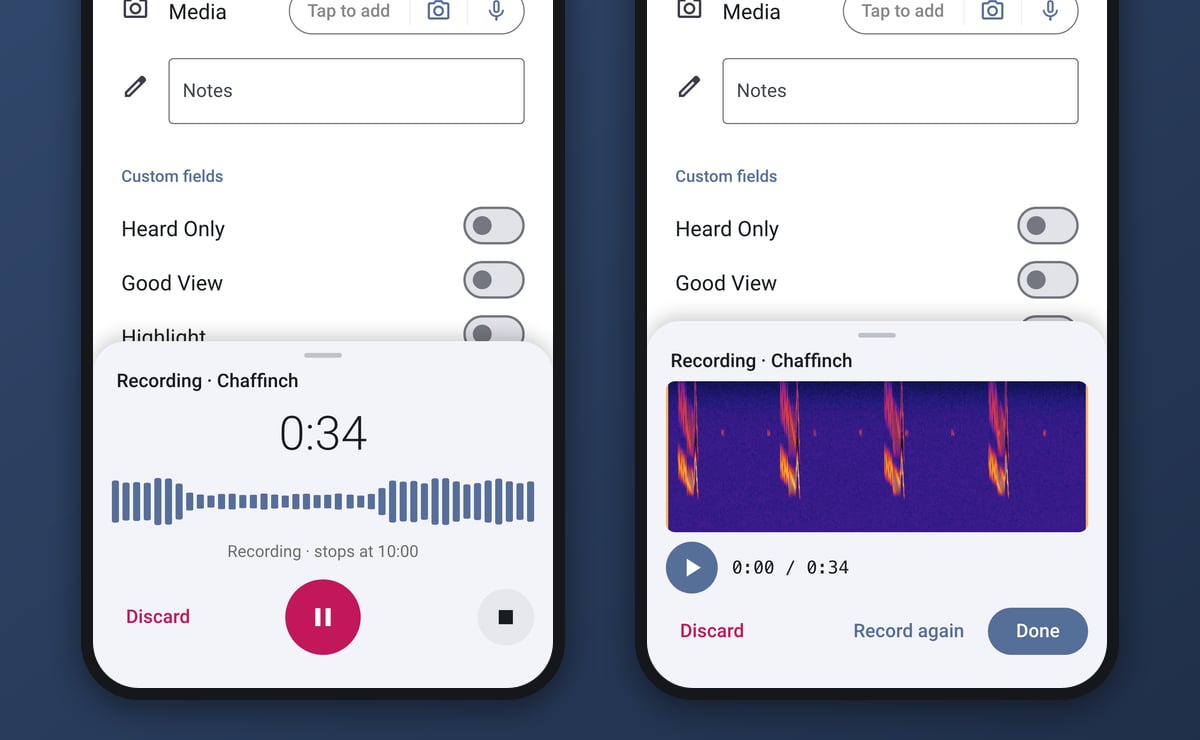
Tap Stop and you can listen back, with the sonogram of the whole take in front of you. Drag either end in to cut the silence before and after the song. Done keeps it, and so does simply closing the sheet: a recording is only thrown away if you choose Discard or Record again.
The entry tab has the same Media row, for a dawn chorus or a recording that belongs to the whole visit rather than to one bird.
Hear it, and see it
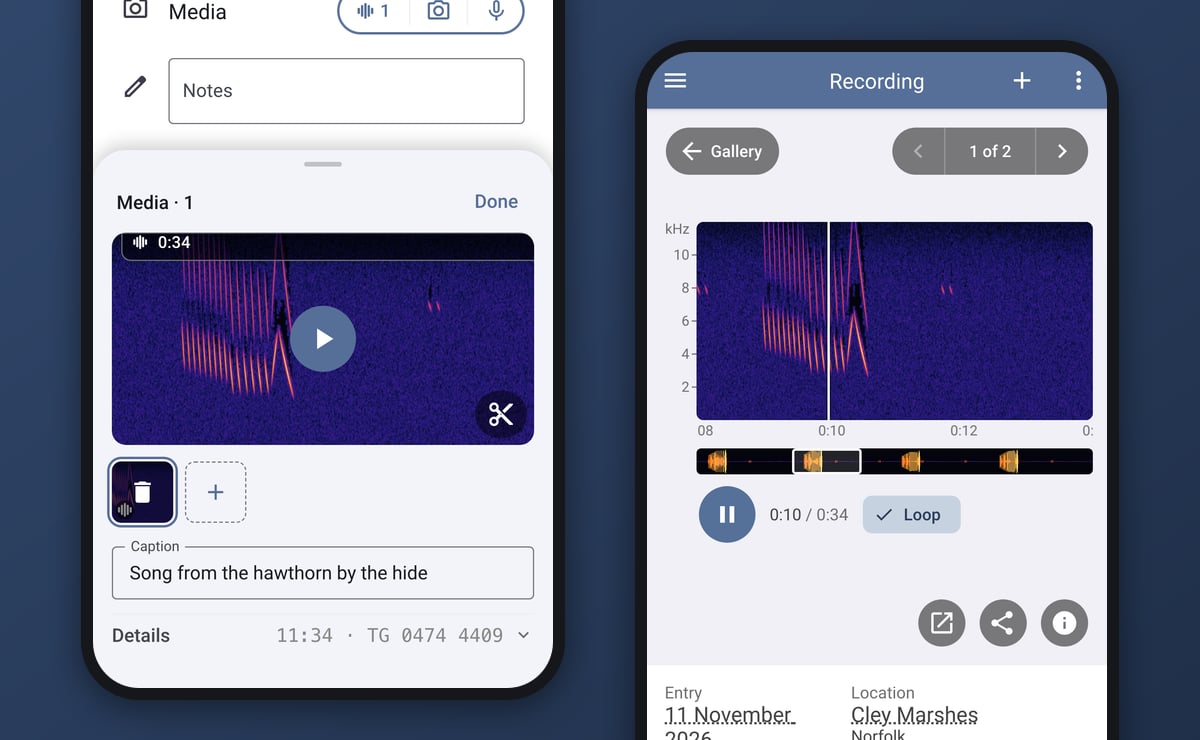
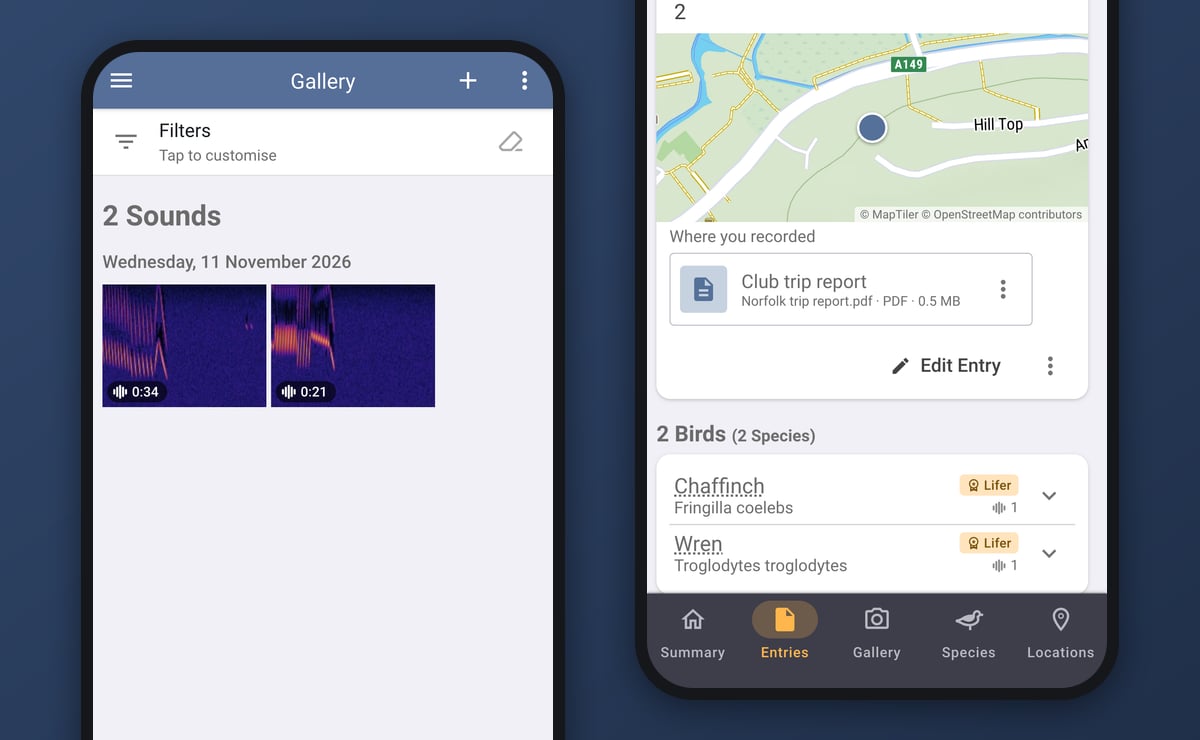
Every sound plays with its sonogram: a picture of the sound, with time running left to right and pitch from bottom to top. Quiet is dark blue and purple, and the louder a sound gets, the further it runs through red and orange to yellow. Two songs that sound alike on a phone’s speaker often look quite different here. That’s the player on the right at the top of this post.
Six seconds fit across the screen, which is enough to tell one note from the next, and the sonogram scrolls under the playhead as it plays. Tap it to play or pause, or drag it to move through the recording. The strip underneath shows the whole recording at once, so a long one is easy to find your way around. The frequency is marked in kilohertz down the side, which several of you asked for, since for some species (bats above all) the pitch is what tells you what you heard. Loop plays a recording round and round, which is how most of us learn a song.
Add a recording you already have
Recordings from your own recorder, or from Voice Memos, can be added too. On a phone, tap the Media row and choose Choose a file. On Mac, Windows and the web, open the Media field in the entry dialog, then Add, or drag files straight onto it.
Bird Journal takes M4A, MP3, WAV and FLAC files, up to 10 minutes long, and keeps every sound in the same format (AAC, as an .m4a file), so it plays on every device you use. Recording isn’t available on the computers or in a web browser. That’s work for the field, and it’s done on the phone.
Trim it later
A recording you’ve already added can be trimmed afterwards, whether you recorded it in the app or brought it in from a file. In the phone’s Media sheet, tap the scissors on the recording. On Mac, Windows and the web, it’s Trim in the Media field, beside Play.
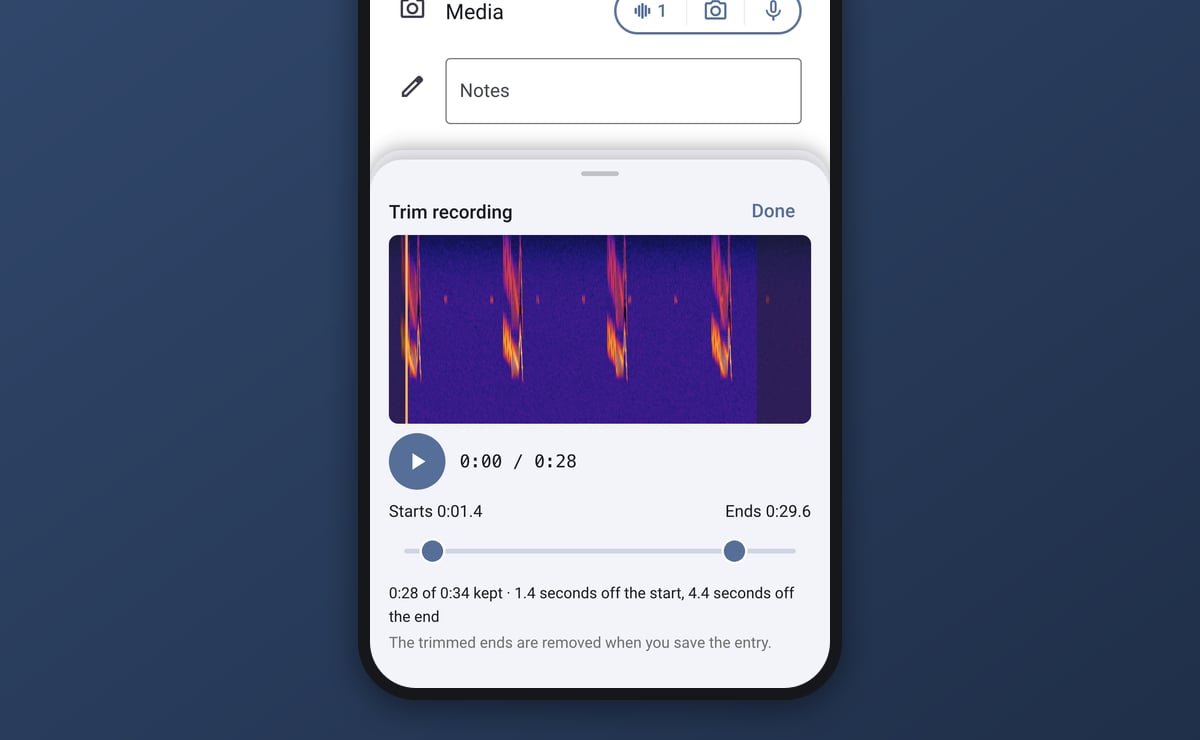
Drag either end in, and Play plays only the part you’re keeping. It’s only the ends: nothing in the middle is edited. When you save the entry, the trimmed ends are removed from the file for good, so a minute of wind before the song doesn’t take up space or sync to every device.
PDF documents
The ringing record, the county submission or the trip report can now go with the record it belongs to. A trip report goes on the entry, and a ringing record on its observation.
You add a PDF the same way as a sound file: Choose a file on a phone, or Add and drag and drop on Mac, Windows and the web. Each one is listed on its entry or observation, with its name and size. Tap it to open it in your device’s own PDF viewer: Quick Look on an iPhone or iPad, your PDF app on Android, Preview or your default app on a Mac, your default app on Windows, and a new tab in a web browser. The ⋮ beside it shares or downloads it.
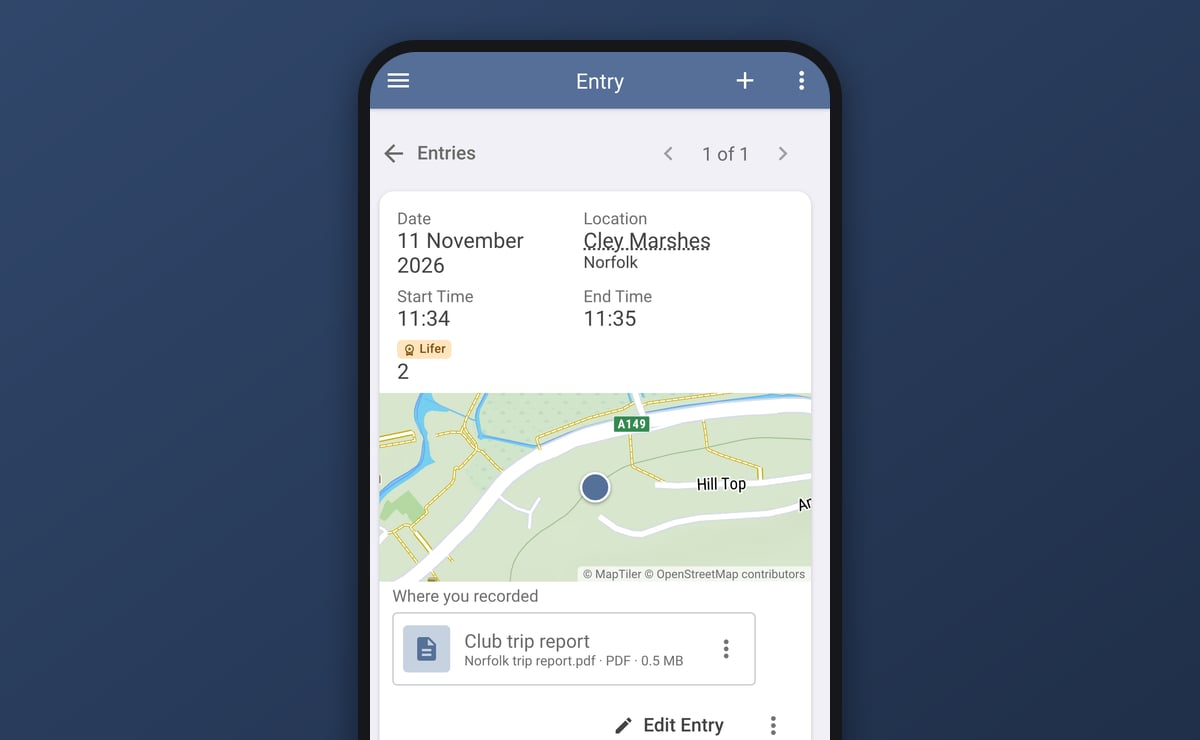
Documents stay with their entry rather than in the gallery, which is for things you look at and listen to. If you have something that isn’t a PDF, such as a Word file or a spreadsheet, print it to PDF first.
In the gallery, and on your entries
A sound appears among your photos as its own sonogram, with its length in the corner, so two recordings never look alike. You’ll find it on the entry, on the observation, on the species and location pages, and in the Gallery. Tap it to play. On the entry, a species with a recording shows a small sound mark, as one with photos shows a camera.
From the player, Share recording on a phone sends the file itself, not a picture of it, to messages, email or another app. On Mac, Windows and the web it’s Download recording. On Android, Mac and Windows, Open in another app hands it to a program such as Audacity or Raven if you want to look at it more closely.
Synced like your photos
Sounds and documents sync to all your devices just as photos do. The sonogram picture comes down straight away, like a photo’s thumbnail, and the recording itself is fetched the first time you play it. If you want everything on a device ahead of a trip with no signal, Download All Photos is now Download All Media, and fetches your sounds and documents too.
A recording with voices in it, or a ringing form, can be more personal than a photo. Like your photos, every sound and document is kept privately with your own account.
Getting it
Sounds and documents are on for everyone now. You’ll need the latest version of Bird Journal, released on 7 November:
- Mac 5.23.32 or later
- Windows 5.18.29 or later
- iPhone and iPad 5.31.6 or later
- Android 5.63.6 or later
- Bird Journal Web is always up to date
One thing to know before you add your first sound or PDF: update every device you use first. Recordings and documents are stored in a newer form, and older versions of Bird Journal can’t read it. Once your journal holds one, any device on an older version will say Update Required and stop syncing until it’s updated. Nothing is lost, and updating sorts it straight away, but it’s easier to update everything first. That goes for the old laptop in a drawer, too.
Tell us how you get on
This started as three ideas on the board and a lot of comments underneath them, so thank you to everyone who voted and wrote in. We’d love to hear what you record, and what you’d like it to do next. There are feedback options built into the app under the Help menu, and the support site is always open.