
Small Things, Sorted
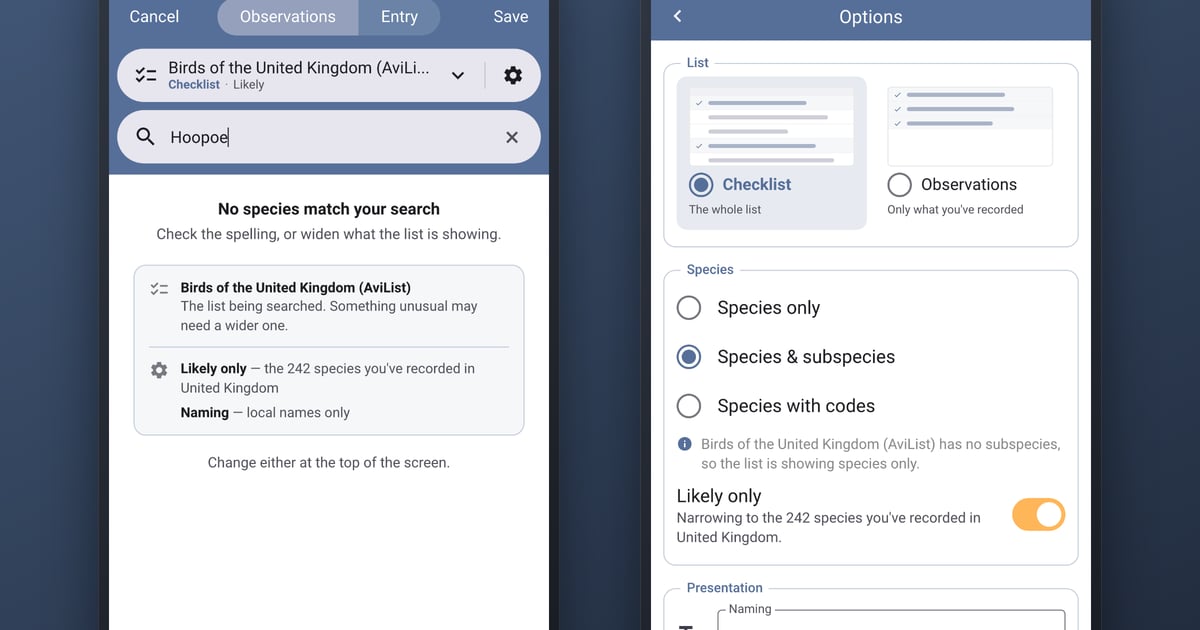
Someone wrote to tell us that Bird Journal couldn’t record a species they had never seen before. They’d searched for it on the recording screen, and the app said No species found.
It could, of course. They had Likely only switched on, which narrows the list to the species you’ve recorded around that place before, and a bird you’ve never recorded is never one of those. The search was right about the list it had searched. It just didn’t say which list that was, so the only sensible conclusion was the wrong one.
This post is about that kind of thing. None of these changes is large. Each one is a place where the app knew something and didn’t say so, or left you to do work it could have done itself. They’re all on the recording screen, and they’re all sorted.
A search that says what it searched
When a search comes up empty now, the screen tells you what it was searching.
It names the checklist first, because that’s usually the answer. Then it lists each option that narrowed the list further, in the option’s own words: Likely only — the 242 species you’ve recorded in United Kingdom. Then it tells you where to change either one. Here it is searching for a Hoopoe:
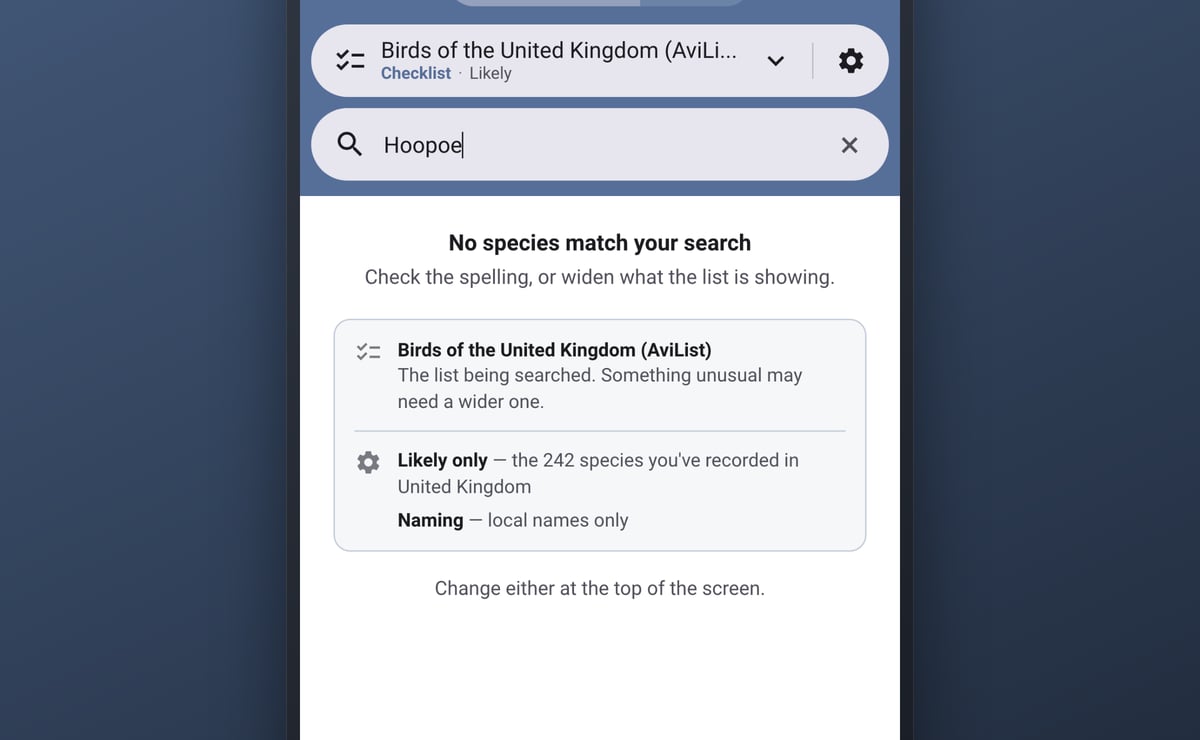
If the list you’re on already covers the whole world, it says so, rather than sending you off to look for a wider one that doesn’t exist.
We did draw a button to search straight through the filter. We set it aside because it only gets you past Likely only, and that’s the smaller half of the problem. Far more often a species is missing because the checklist is narrower than you thought: a county list when you needed the country, or the country when the bird was a vagrant. A button labelled Search all species that quietly still searched your county list would have been worse than saying nothing. So the screen tells you what it actually searched, and you decide what to widen.
Dates you can type
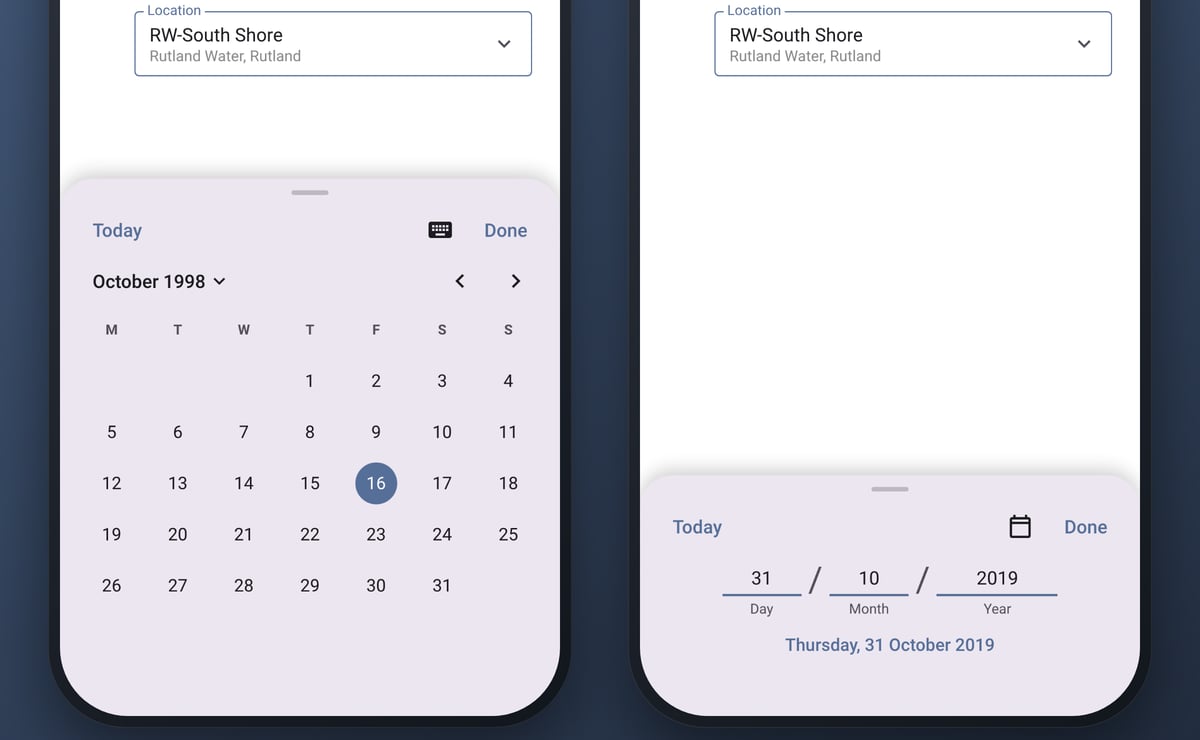
Bird Journal used to hand the date and the time over to your phone’s own pickers. They’re fine for today. They’re hopeless for a notebook. On an iPhone you couldn’t type a date or a time at all, and on Android you couldn’t type a date. Android’s calendar has no way to jump between years either, so getting back to 1998 took 336 taps on the month arrow.
Dates and times now open in a sheet of our own, the way the count and the position already do. Tap the month and you get the years, so 1998 is a flick and a tap. Or tap the keyboard and type it, and the sheet reads the date back to you with the day of the week. That’s the check a calendar gives you for free and typing doesn’t.
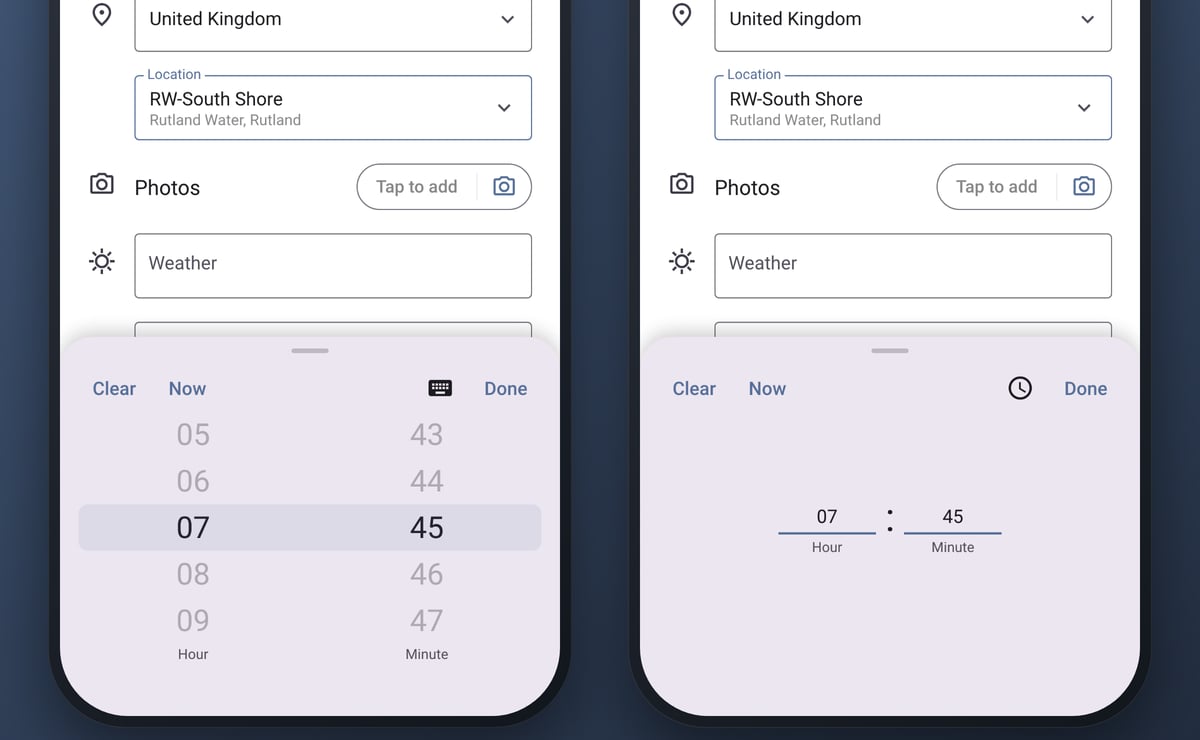
The time works the same way. It opens on a roller, like the count’s, so you flick the hour and the minute to where you want them, and Now sets it to the current time. Or tap the keyboard and type it, and it moves on to the minutes by itself once the hour is done.
If you’re catching up on a notebook with Live Input off, a new entry starts on the date you last used rather than today, so a run of entries from one trip doesn’t mean picking the same date every time.
New locations where they belong
You can create a location while you’re recording, by typing a name that doesn’t match anything you have. Until now it went straight into the country: a new hide at your local reserve was filed under United Kingdom, not under the reserve. Four of you wrote to say so, and the workaround was grim. You saved the entry somewhere it didn’t happen, then re-filed it later in Edit Locations.
Now Create asks what the new location sits within, and suggests an answer. It offers the places you’ve used recently and the ones nearest to where you’re standing, says why each one is there, and ticks the likeliest. If that’s right, it’s one tap. If not, tap another or search. A brand-new journal, with no places of its own yet, is offered the nearest areas rather than the whole country.
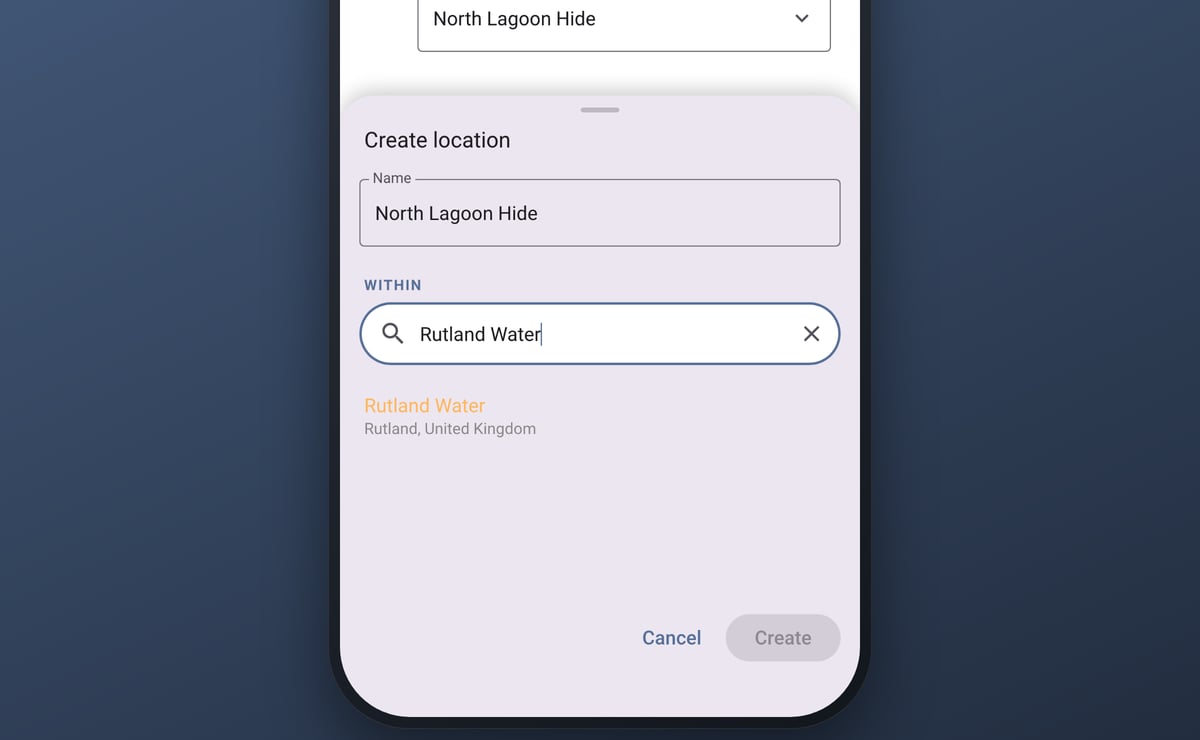
Above, a new hide is being filed within the reserve it belongs to, rather than loose in the country.
We did think about filing it automatically, without asking. It would save a tap whenever the guess was right. But a wrong guess that nobody notices is a location filed in the wrong place for good, which is exactly the problem we were fixing.
Options you set once
Subspecies were hiding. The option that turns them on was a menu reading Species only, with nothing to suggest there was anything else to choose. And on a checklist with no subspecies, as most butterfly lists are, the choice was greyed out, so you couldn’t even say you wanted subspecies for the lists that have them.
The Options screen now lays the choices out, and none of them is ever greyed out. Choose once, and every checklist that has subspecies or codes shows them. If the list you’re on can’t, the screen says so in a line under the option, rather than quietly ignoring you. These options are yours rather than the checklist’s, so the screen has stopped pretending otherwise: it no longer opens with the checklist’s name across the top.
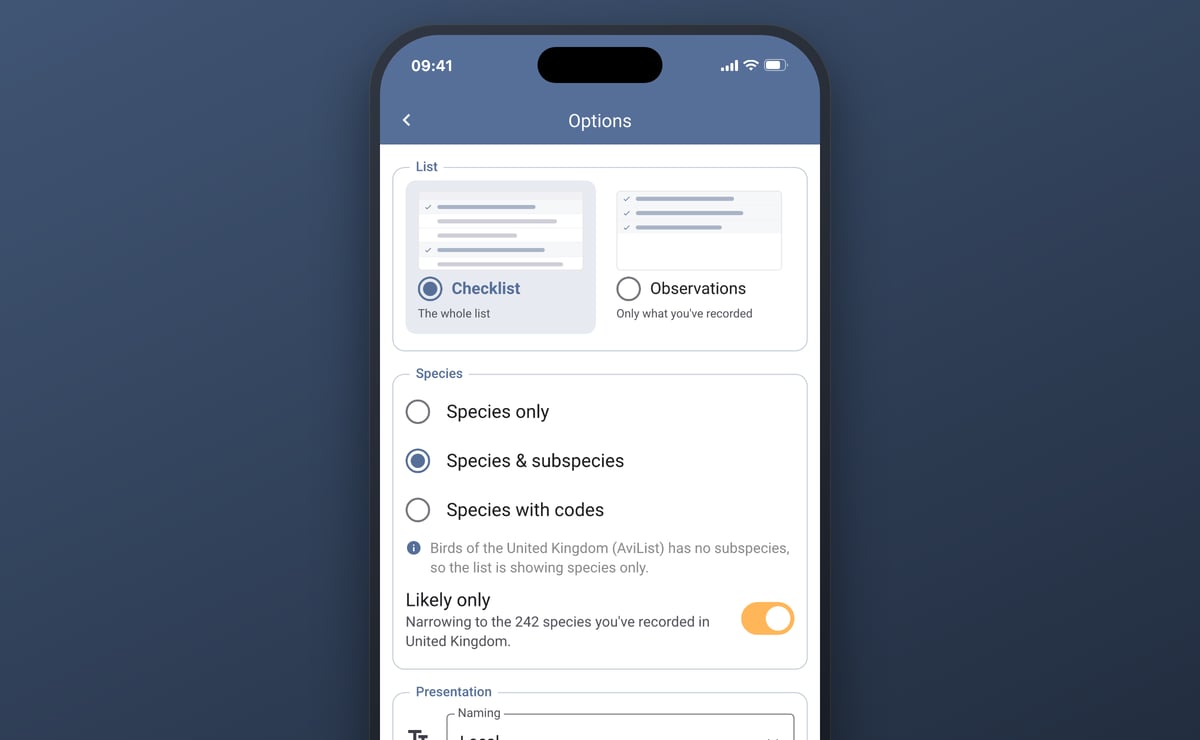
The checklist options on Bird Journal Web, Mac and Windows work the same way.
Getting it
All of this is live now on iPhone, iPad and Android, with the checklist options on Web, Mac and Windows too. If you haven’t updated for a while, update your app and start a new entry.
Most of what’s in this post started as an email, and one of them started as four. If something in Bird Journal is making you work harder than it should, tell us. There are feedback options built into the app under the Help menu, and the support site is always open.